Quickstart
Find an animation in Explore and put working player code into a project.
This quickstart follows one complete developer path: find a public animation, preview it, choose a source, and copy integration code.
Before you start
Install the extension. See Installation.
Open a project in VS Code, Cursor, or Windsurf.
Open the LottieFiles sidebar and choose Explore.
1. Find an animation
Search for a product state such as loading, success, error, or empty state. Select a result to open its preview.
2. Inspect the result
Play and scrub through the animation. Check its dimensions, duration, background, and available file formats. If the palette does not match the product, make a quick color change and preview it again.
3. Choose a durable source
Generated code needs a source that remains available to the application:
Download the animation into the project for local ownership and version control.
Save to Workspace and enable CDN when the team needs a managed permanent URL.
Use an existing Workspace or Motion System CDN URL when the approved asset is already hosted.
Do not ship a temporary upload or preview URL.
4. Generate code
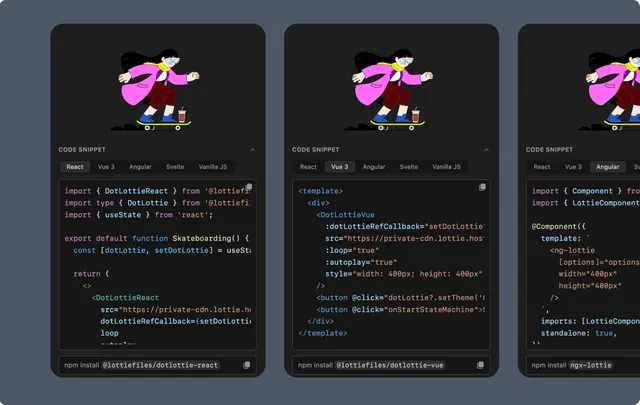
Open Code Snippet, choose the project framework, and configure playback options. Copy the generated code and install the runtime package shown by the extension.
5. Verify in the project
Run the application and confirm that:
The animation loads from the intended source.
Autoplay and loop behavior match the preview.
The rendered size and background work in the component.
The browser or runtime console has no loading errors.