Inserting animations
Preview a Lottie animation in Explore and insert it into a Figma scene.
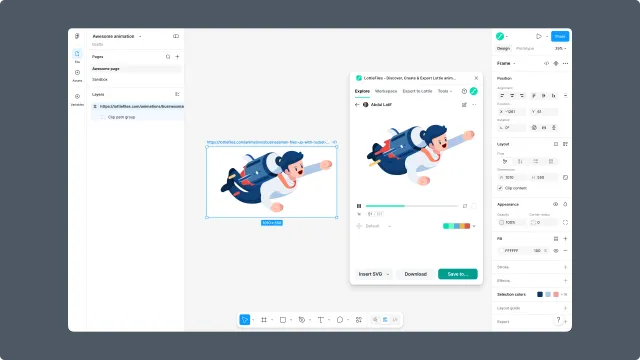
After you find an animation in Explore, open its preview to inspect it before placing it on the canvas.
How to access this
Open the LottieFiles plugin in Figma.
Open Explore.
Search or browse until you find an animation.
Click the animation card to open its preview.
Preview before inserting
Use the preview view to check:
The motion rhythm and loop.
The visual style against your Figma scene.
Whether the animation is free or Premium.
Whether the asset should be saved to Workspace before use.
Insert into the canvas
Click the insert action from the preview view. The plugin places the animation into the current Figma canvas so you can position it with the rest of the design.
Motion tokens
If the animation includes motion tokens, the preview shows a Motion Tokens panel where you can view tokens, edit their values, save the current values as a new theme, and insert the animation with those values applied. See Motion tokens for the full workflow.
If the animation is meant for production handoff, keep the source asset in Workspace or share the LottieFiles asset URL with the developer. A placed animation in Figma is useful for design composition, but the deployable file should still be exported as dotLottie or Lottie JSON for legacy compatibility.