Interface
Learn the Explore, Workspace, preview, and canvas-aware areas of the LottieFiles plugin for Framer.
The plugin is organized around two animation sources. Both lead to the same preview and insertion workflow.
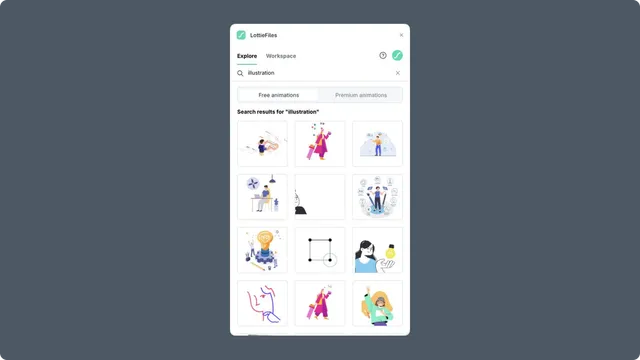
Explore
Use Explore for the public LottieFiles library. Search free or Premium animations, switch between Featured, Popular, and Recent results, and open a result for preview.
Workspace
Use Workspace for your private and team assets. Switch workspaces, open a project or folder, and choose the approved file you want to publish.
Animation preview
The preview can include:
Playback, seeking, loop, speed, and background controls.
SVG Player, ThorVG Player, or an automatic renderer choice.
Palette changes for supported artwork.
Child-animation selection for multi-animation dotLottie files.
Themes and state-machine controls when the file and account support them.
Insert animation, Save animation to insert, or another context-specific primary action.
Framer canvas context
The plugin uses the current canvas selection when possible. If a Frame is selected, the inserted component is placed inside it. Otherwise, the component is added at the canvas root.
Selecting a LottieFiles player component that is already on the canvas opens its contextual settings in the plugin. Use that view to inspect or change the component's playback, background, themes, and state-machine settings.