Browsing and searching
Browse projects and folders, search workspace assets, and open saved animations from the Figma plugin.
Workspace content is organized around the same LottieFiles asset structure your team uses in the web app. Use browsing when you know the project or folder. Use search when you know the asset name.
How to access this
Open the LottieFiles plugin in Figma.
Open Workspace.
Sign in if prompted.
Switch workspaces
If you belong to more than one workspace, use the workspace selector to choose the active workspace. The projects, folders, and files below the selector update to match that workspace.
Browse projects and folders
Click through the workspace hierarchy:
Workspace - your personal or team container.
Project - a larger grouping for work.
Folder - nested organization inside a project.
File - the saved animation or asset.
Open a file to preview it, insert it into Figma, or access sharing and handoff actions.
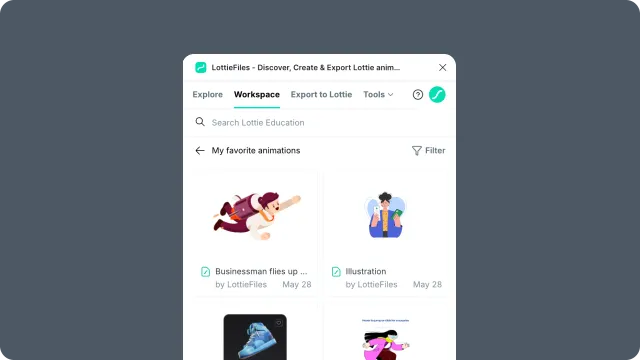
Search
Use search to find assets by name across the active workspace. Short, practical names are easiest to find later: checkout-success, loader-small, brand-logo-loop.