Using Motion Tokens
Inspect, preview, and apply Motion Tokens from Explore and Workspace in the LottieFiles plugin for After Effects.
Motion Tokens expose values already defined inside a dotLottie animation, such as colors, gradients, numbers, positions, and text. In the After Effects plugin, you can inspect those values, try changes with a live preview, switch themes, and insert the customized result into After Effects.
The After Effects plugin works with Motion Tokens that are already defined in the animation. To create new token bindings, use Motion Tokens in Lottie Creator or the LottieFiles plugin for Figma, then save or export the animation as dotLottie (.lottie).
What you can do
| Action | Explore | Workspace |
| View tokens defined in the animation | Yes | Yes |
| Switch between existing themes | Yes | Yes |
| Edit values with a live preview | Yes | Yes |
| Insert the current result into After Effects | Yes | Yes |
| Create or rename a theme | No | Yes |
| Save token and theme changes to the file | No | Yes |
Preview and insert from Explore
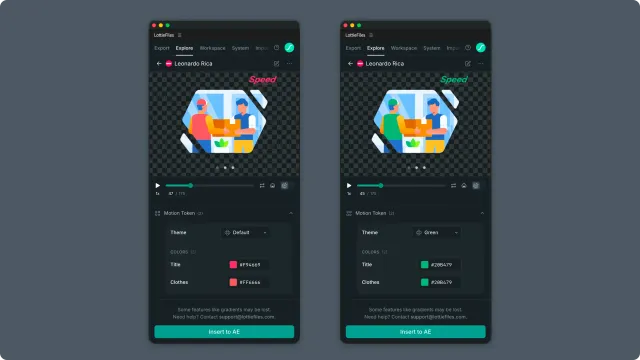
When an Explore animation contains Motion Tokens, expand Motion Token below the player. Choose Default or an existing theme, then edit a value to preview the change immediately.
Click Insert to AE to insert the animation with the token and theme values currently shown in the preview. Explore changes are temporary: they affect the inserted result but do not update the source animation or its themes.
Work with tokens from Workspace
Open a tokenized dotLottie file from Workspace to inspect the same values, switch themes, and preview edits before inserting. Workspace also lets you add or rename themes and save changes back to the file as an updated version.
See Managing themes and changes for the complete Workspace workflow.
Supported values
The plugin supports these Motion Token value types:
Color
Gradient
Scalar values, such as opacity or rotation
Vector values, such as position or scale
Text
For supported non-text values with keyframes, select a keyframe to inspect and edit its value. The preview updates as you work.