Browsing and searching
Switch workspaces and find projects, folders, and files from the Framer plugin.
Sign in before opening Workspace. The plugin uses the current LottieFiles account and its workspace permissions.
Navigate the library
Open Workspace.
Expand or switch to the intended workspace.
Open a project, then continue into folders when needed.
Select a file to inspect its preview and current metadata.
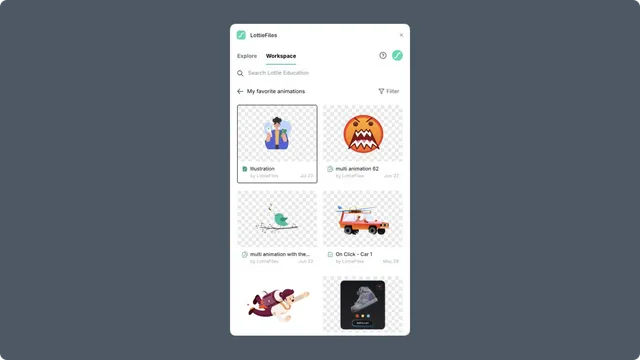
Use the file name, project location, preview, and available status information together. A familiar thumbnail is not enough when several versions or variants look alike.
Find the production source
Before insertion, confirm:
You are in the correct personal or team workspace.
The project and folder match the release or page you are editing.
The file is the approved animation rather than an exploration copy.
The selected child animation, theme, or state machine matches the intended experience.
If the asset is missing, check that you joined the right workspace and that the project or folder is visible to your account.