Customizing and updating an animation
Recolor a Lottie, save or update the result in Workspace, and continue advanced editing in Lottie Creator.
Use the extension for a quick palette change. Continue in Lottie Creator when the animation needs layer, timing, easing, or structural edits.
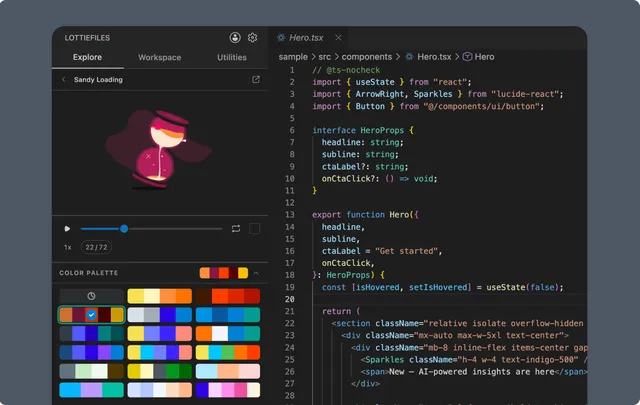
Change the color palette
Open an animation from Explore, Workspace, or a local preview.
Expand Color Palette.
Choose a preset palette or set custom replacement colors.
Play and scrub through the result.
Reset if you want to return to the original source.
Palette editing changes detected vector colors. It does not recolor embedded raster images, and complex gradients may require Creator.
Download the recolored result
Download keeps the source family:
A recolored
.lottiedownloads as.lottie.A recolored Lottie JSON downloads as
.json.
Use this when the file should live in the application repository rather than Workspace.
Save or update Workspace
Choose the option that matches ownership:
Save as new creates another Workspace file in the selected project or folder.
Update creates a new version of the existing Workspace file when the source and permissions support it.
If you change the previewed bytes by recoloring or adding an animation, the previous Workspace or CDN binding is cleared. Save the new result before copying another permanent URL.
Refresh CDN after a change
When Workspace policy permits CDN links, saving a new result can be followed by CDN publication. Confirm that the copied URL belongs to the new or updated file rather than the pre-edit source.
Continue in Lottie Creator
Open the LottieFiles asset in the browser and use Lottie Creator for:
Layer and artwork changes.
Keyframe timing and easing.
Motion paths and transforms.
Theme, motion-token, or state-machine authoring.
Save the result to the intended Workspace file, then reopen or refresh it in VS Code.
Animated SVG note
Animated SVG export uses the original animation source. Palette changes made only in the current preview are not applied to that SVG export.