Exporting compositions as Lottie
Render an After Effects composition out to Lottie and (optionally) upload it to your LottieFiles workspace, all from inside After Effects.
How to access this
Open the LottieFiles plugin in After Effects (Window > Extensions > LottieFiles).
Click Export in the top tab bar.
The Export tab opens to a list of every composition in your current After Effects project.
Before you start
Your After Effects project has at least one composition.
You're signed in to LottieFiles. The render itself works locally, but uploading to your workspace requires a sign-in.
For best results, read Preparing comps for Lottie before rendering — it covers the layer and comp choices that decide how cleanly the render comes out.
Steps
1. Find the composition you want to export
The Export tab shows every composition in your project. Use the search bar at the top to narrow the list — it filters by composition name as you type.
2. Select one or more compositions
Single render — click the Render icon next to the composition's name.
Batch render — tick the checkbox next to each composition you want, or use the Select all checkbox at the top. Hold Shift while clicking to select a range.
The number of selected compositions appears at the top of the list, and a global Render button at the bottom becomes available.
3. (Optional) Configure Render Settings
Open Render Settings from a composition row to change one composition, or use the settings action in the list header to change all compositions or the current selection.
The modal covers metadata, font export, expression conversion, image assets, hidden layers, and guide layers. See Export panel controls for the complete list.
4. Run the render
Click Render to start. Rendering reads the AEP from disk, so the plugin first checks whether the open project has unsaved changes.
If the project has no unsaved changes, rendering starts without saving or showing a prompt.
If the project has unsaved changes and Auto-save is enabled, the plugin saves the AEP and starts rendering.
If the project has unsaved changes and Auto-save is disabled, the Save changes to AEP file prompt appears before rendering.
Change Auto-save from the account avatar menu under Settings. The preference takes effect immediately.
The plugin navigates to the Render queue view (/compositions/render) and shows progress for each composition. Each composition renders in After Effects' background, so the AE UI stays responsive.
5. Save or upload the result
When a render finishes, the row shows the resulting Lottie file and an upload option.
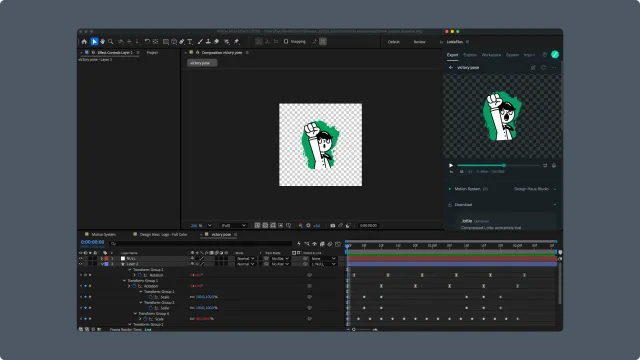
Save locally — the rendered
.lottie(or.json) file is written to your local export path.Upload to workspace — select one or more finished renders and click upload. Pick a destination project or folder in your LottieFiles workspace. The plugin can also save the
.aepsource file alongside the Lottie if you tick Save AEP (storage limits apply — see Limits and plans).
Verifying the result
The render queue shows ✓ for each finished render.
Your local export folder contains the Lottie file(s).
If you uploaded, the file appears in your LottieFiles workspace at the destination you chose.
Opening the Lottie in a player (or in LottieFiles Creator) plays back what you'd expect.
If playback doesn't match your After Effects preview, check the Lottie compatibility matrix — it lists which AE features convert cleanly and which don't.
Troubleshooting
This section is the consolidated home for After Effects plugin troubleshooting. About 99% of the issues motion designers run into surface during render or export, so they all land here. The few non-export issues (plugin won't load, sign-in stuck) are linked to their specific chapters.
Render-side failures
Render queue stalls without progress — confirm After Effects isn't waiting on a modal (project save prompt, RAM warning). Bring the AE window forward; the plugin can't render while AE is blocked. If AE is responsive but the render still stalls, restart AE.
Render fails and the row shows an error icon — hover the row for the error message. The most common causes: missing fonts, missing footage, or an unsupported effect on a layer (see Lottie compatibility).
Output Lottie plays incorrectly (missing layers, broken transitions, wrong colors) — almost always a compatibility issue. Check the Lottie compatibility matrix for the specific feature you used.
Output Lottie is unexpectedly large — review the comp for raster layers, large pre-comps, or unnecessary effects. See Preparing comps for Lottie.
Upload fails with a network error mid-transfer — re-try the upload from the render queue. If it fails again, check that your workspace has enough storage (the upload UI shows the remaining quota).
"Save AEP" is disabled — your workspace storage is at or near its limit. Either free up space, upgrade, or untick Save AEP and upload just the Lottie.
Plugin loading and sign-in (not Export-specific, but landing here for searchability)
Plugin doesn't appear under Window > Extensions — see Installation > Troubleshooting.
"Allow Scripts" checkbox is greyed out in AE preferences — quit and reopen After Effects. On Windows, opening AE once as Administrator typically resolves this.
Sign-in opens a browser tab but never returns — the plugin's sign-in flow hands off to your default browser. Confirm the browser actually loaded the LottieFiles login page; switch default browsers if it didn't. After signing in, return to After Effects and click Reload on the plugin panel.
Reporting issues
If you hit a problem not covered here, report it via the Help dropdown in the top-right of the plugin panel, or post in the LottieFiles community forum. Including your plugin version (from the About plugin modal) and After Effects version makes triage much faster.
Related
Preparing comps for Lottie — pre-export checklist that prevents most issues above.
Lottie compatibility — feature-by-feature support matrix.
Export panel controls — every control in the Export tab and what it does.