Creating a multi-animation bundle
Combine several animations into one .lottie file with dotLottie Composer.
Use dotLottie Composer when related animations should ship as one bundle with stable IDs and a defined initial animation.
Open Composer
Open Utilities.
Select dotLottie Composer.
Add the source animations.
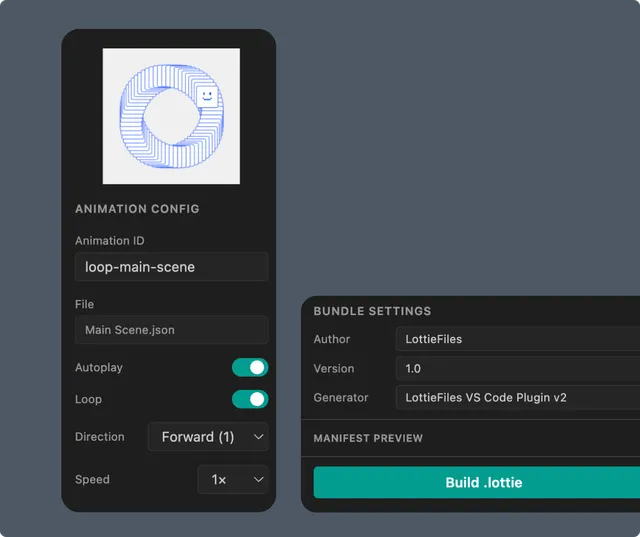
Use animation IDs that describe runtime meaning, such as idle, loading, success, and error. Avoid IDs based only on temporary filenames.
Configure the bundle
Composer lets you:
Add several animations.
Set or edit animation IDs.
Arrange their order.
Choose the initial animation.
Configure supported playback behavior.
Add bundle metadata.
Review duplicate IDs before building. Runtime selection depends on each ID being unique.
Build and download
Build the bundle and save the generated .lottie file into the project or another intentional destination. Reopen it with the extension and verify:
All animations are present.
The expected animation is initial.
IDs match the integration code.
Playback works for every child.
Manifest metadata is correct.
Composer scope
Composer currently authors the animation bundle. It does not provide controls for creating theme definitions or state machines. Do not assume embedded themes or state machines from an input will be authored or merged; verify the built output before relying on them.
Integrate the bundle
Keep the .lottie format and select animations by ID in a dotLottie runtime. Exporting the bundle to JSON keeps only one active animation.