Editing sections
Add or update supported items inside an existing Motion System. The AE plugin provides item-specific controls for colors, easings, fonts, motion presets, and asset collections.
Note — Create the Motion System and manage the system itself in the Motion System web dashboard. Once it exists, return to the AE plugin to add, edit, publish, and apply supported items.
How to access this
Open the LottieFiles plugin in After Effects.
Click System in the top tab bar.
Click the motion system you want to edit.
Inside the system, click a section to enter its editor.
Section editor common patterns
Supported item editors provide:
Item list — the existing items in the section.
Add new — controls for adding an item to the existing section.
Item actions — controls for editing, renaming, or removing an item where supported.
Section-specific editor variations:
Colors
Add a color item by name + hex (or color picker). Existing items show a color swatch and the underlying value. Click a swatch to edit; double-click to rename.
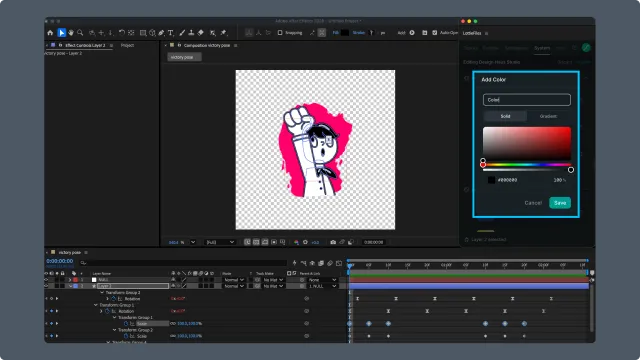
Easings
Easings use a curve editor or cubic-bezier input. Named elements like ease-out-quart map to one curve. Preview area shows the curve animating a sample.
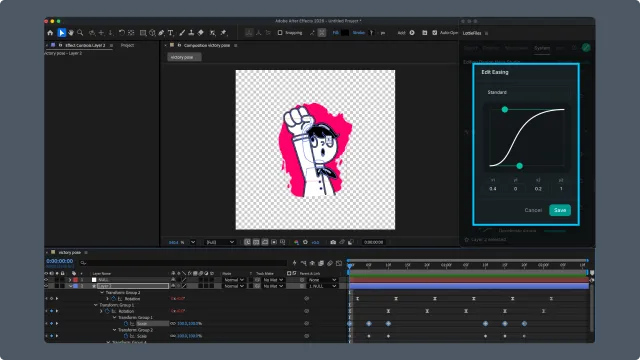
Fonts
Add or edit the font details used by the system. To apply a font to an AE text layer, make sure that font is available in After Effects.
Motion presets
Motion presets are pre-authored animation patterns. Preview and apply them from the plugin; use Edit in Lottie Creator when a preset needs more detailed editing.
Assets
Add or edit supported assets in a collection, then import them into the current After Effects project from the Motion System panel.
Renaming items
Item names appear throughout the Motion System panel. Open an item's edit controls and update its name where renaming is supported.
Deleting items
Use an item's delete control where available. Review the draft before publishing so you do not remove an item unintentionally.
Troubleshooting
Section editor won't save — make sure you're signed in to the correct Team + workspace and have permission to edit the system.
Related
Motion System basics — what a section is.