Export panel controls
A reference for every control in the Export tab and its sub-views. Use this page when you want to know what a specific button or option does, rather than walking through the full render flow.
How to access this
Open the LottieFiles plugin in After Effects (Window > Extensions > LottieFiles).
Click Export in the top tab bar.
The Export tab has four sub-views:
Compositions list — the default landing, showing every composition in your AE project.
Render queue — appears after you start a render; shows progress and finished results.
Rendered animation detail — opens a completed render for preview and export actions.
Render Settings — a modal opened from the settings action on a composition row or from the list header.
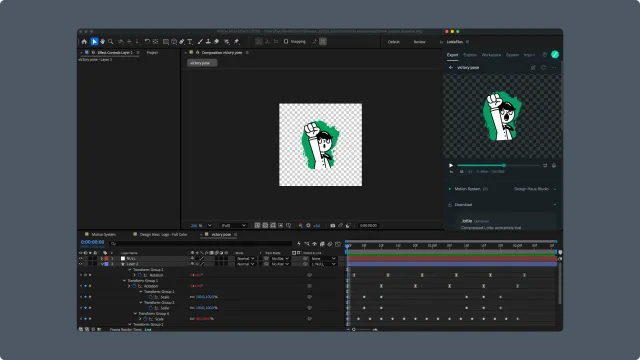
Compositions list
The default view of the Export tab.
Header
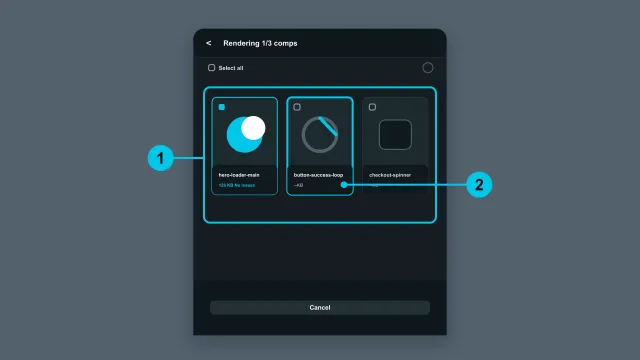
Search bar — filters the composition list by name. Filtering is debounced (~800 ms) so you can type without each keystroke re-running the filter.
Refresh button — re-fetches the composition list from After Effects. Useful if you've created, renamed, or deleted compositions since opening the plugin.
Select all checkbox — toggles selection for every visible composition. Has three states: empty, all-selected, and indeterminate (some selected).
Composition row
Each composition in the project appears as a row.
Selection checkbox — toggles this composition. Hold Shift while clicking another row to select the range between them.
Composition name — display name from After Effects. Click the name to do nothing in the plugin (this isn't a navigation target); use the dedicated action buttons instead.
Settings icon — opens Render Settings for this specific composition. See Render Settings below.
Render icon — starts a single-composition render. The render queue opens and rendering begins immediately (or after the project save prompt).
Bottom bar
Only visible when one or more compositions are selected.
Render — starts a batch render of every selected composition. Behaviorally identical to per-row Render but runs them in order. The plugin navigates to the render queue.
Render queue
The view you land on after starting a render. Reachable directly at /compositions/render once a render has been queued.
Per-render row
Each composition you queued appears as a render card.
Status indicator — shows the current state: queued, rendering, complete, or error. Hover for the full message.
Composition name — the comp that's rendering.
Progress — percentage complete for in-flight renders.
File size — shown for completed renders.
Selection checkbox — for batch upload. Multi-select uses the same Shift-click range pattern as the compositions list.
Header
Back button — returns to the compositions list.
Search bar (when many renders) — filters the queue by composition name.
Upload area
Appears once at least one render has finished.
Destination picker — choose the LottieFiles workspace, project, and folder for the upload.
Save AEP checkbox — when ticked, the source
.aepfile is uploaded alongside the Lottie. Disabled when your workspace storage would be exceeded — hover the disabled checkbox for the upgrade tooltip.AEP file size — the size of the
.aepthat would be uploaded, shown before the upload runs.Upload button — starts the upload for all selected renders.
Rendered animation detail
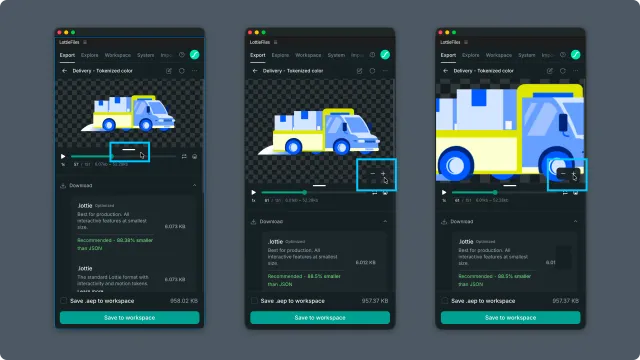
Open a completed render to inspect the animation before downloading or uploading it.
Player — previews the rendered animation with playback controls.
Zoom controls — hover the preview canvas to reveal minus and plus buttons. Zoom ranges from 10% to 300% in 10% steps.
Pan when zoomed — above 100%, the cursor changes to grab. Drag the preview or use a two-finger trackpad gesture to move the enlarged animation within the preview boundaries.
Preview clicks — above 100%, preview clicks are reserved for panning and do not trigger playback or State Machine interactions. At 100% or below, the existing preview interactions remain available.
Render Settings
A modal accessed from a composition row for one composition, or from the settings action in the list header for all compositions or the current selection.
The modal groups settings into:
Metadata — author, description, keywords, and theme color.
Font export settings — bundle and inline fonts, writing direction, convert fonts to shapes, and settings for fonts used by the composition.
Expressions — convert expressions to keyframes, extend conversion beyond the work area, and remove expression-only properties.
Assets — embed image assets in JSON, keep original asset names, copy original assets, or skip unchanged image exports.
Etc. — include hidden layers and guide layers.
Related
Exporting compositions as Lottie — the end-to-end flow that uses these controls.
Lottie compatibility — what each export option means for the resulting Lottie.
Preparing comps for Lottie — what to do before you reach this panel.