Webflow
Find, prepare, and publish Lottie animations on Webflow sites with the LottieFiles app.
The LottieFiles app for Webflow brings public animations and your team's private LottieFiles Workspace into the Webflow design environment. Find an animation, prepare it for the intended runtime, insert it into the page, and verify the result after publishing.
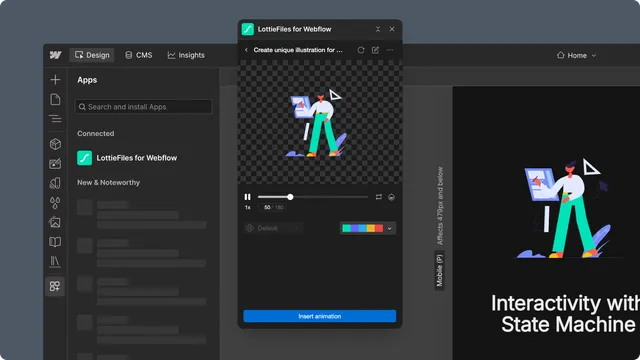
The core workflow
Find an animation in Explore or choose the approved version from Workspace.
Prepare its background, palette, renderer, theme, child animation, or state machine when needed.
Select the page element that should receive or anchor the animation.
Insert a native Webflow Lottie element or an advanced dotLottie player.
Preview and publish the site, then verify the animation on its public URL.
Choose a source
Explore is the public LottieFiles library. Use it to discover public animations for a new need.
Workspace contains private and team assets organized into workspaces, projects, collections, and folders. Use it for approved production assets.
A local file should be uploaded to Workspace first. This preserves one reviewable source before the animation enters Webflow.
What the app adds
Standard Lottie animations are copied into Webflow Assets and inserted as native Webflow Lottie elements. dotLottie v2 files and interactive state machines use a dotLottie web component with page custom code so advanced runtime features survive publishing.
An inserted element is not a live mirror of its Workspace file. When the source changes, review the new version, replace or reinsert the element, and publish the site again.
Start here
Quickstart - install the app and publish a free animation on a Webflow site.
Workspace - use private or team-approved animation assets.
Insert and publish - choose a container, understand the inserted element, and verify the live result.