Editing sections
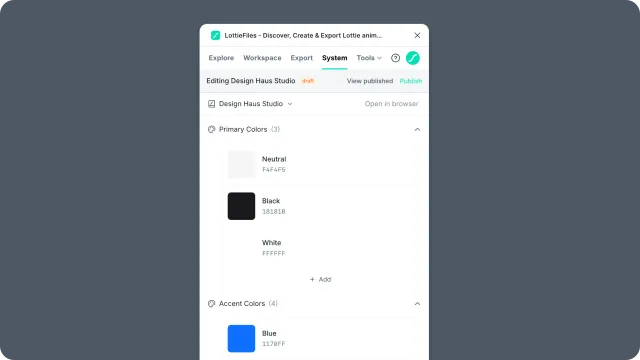
Add, modify, and remove items inside supported sections of a motion system. In the Figma plugin, editing happens through draft mode and per-item modals for colors, easing curves, font styles, and collection assets.
Note — Create the Motion System and manage the system itself in the Motion System web dashboard. Once it exists, return to the Figma plugin to add, edit, publish, and apply supported items.
How to access this
Open the LottieFiles plugin in Figma.
Click System in the top tab bar.
Click the motion system you want to edit.
Click the edit (pencil) icon to open the draft.
Use + Add or an item's edit/delete controls inside an existing section.
Edit modal common patterns
Editable items open in a modal:
Add mode creates a new item in the selected existing section.
Edit mode updates the selected item.
Save updates the item in the draft.
Cancel closes the modal. If the plugin opened draft mode only for that edit shortcut, canceling returns you to the published view.
Section-specific editor variations:
Colors
Add a color item with a name and either a solid color or a linear gradient. Solid colors use a color picker, hex input, and alpha value. Gradients use draggable stops, stop offsets, and per-stop color editing. Gradients with three or more color stops show a limited-support warning.
Color rows show swatches. Solid colors can be copied as hex or hex-with-alpha. When applying to a canvas selection, the plugin can target fill, stroke, or both when the selected layers support those paint targets.
Easings
Easings use an interactive cubic-bezier editor plus numeric x1, y1, x2, and y2 inputs. Existing easing rows show a curve thumbnail and a copyable cubic-bezier(...) value.
Applying an easing starts an export preview flow. It works with two or more selected frames, or with a selected frame that has a prototype flow. If a flow has multiple Smart Animate interactions, the plugin asks which interactions should receive the easing.
Fonts
Font styles can be created from Google Fonts search, a font file upload, a font URL, or manual entry. A font item stores a display name, font family, weight, size, line height, letter spacing, source type, and optional URL/source file data.
Applying a font changes selected text layers in Figma. The font family must be available in Figma. If the exact weight is missing, the plugin applies the closest available style and shows a warning.
Motion presets
Motion presets are pre-authored animation patterns. The Figma System tab shows preset preview cards and lets you apply a preset to a selected frame to generate a preset animation preview/export.
The System tab does not provide a preset editor. Basic motion presets can be added and edited in the web Motion System dashboard. More detailed preset creation is supported in Lottie Creator. After saving the preset there, return to the Figma System tab to use it on a selected frame.
Assets
Collection assets can be added from a workspace file, a URL, or an upload. Give each asset a clear title so teammates can recognize it in the System tab.
Collection rows can copy the asset link. Lottie assets can be inserted as SVG or GIF; SVG and raster image assets insert into the Figma canvas in their supported format.
Renaming items
Item names appear in the System tab rows and apply notifications. To rename an item, open its edit modal and change its name or label.
Section titles can also be renamed in draft mode by clicking the section title in the accordion header.
Deleting items
Delete items with the per-item delete control. The plugin confirms with Delete item? before removing the item from the draft. If you delete the last item in a section, the section is removed.
Ordering sections and items
The current Figma System tab does not show a drag-to-reorder control for sections or section items. To change section order, reorder the sections in the web Motion System dashboard, publish the update, then reopen the Motion System in the Figma plugin.
Troubleshooting
The System tab asks you to log in — sign in to the LottieFiles workspace that contains the Motion System. To create a new system, continue in the Motion System web dashboard.
Publish is blocked — add at least one value or asset before publishing the draft.
Font won't apply — select a text layer and make sure the font family is available in Figma.
Easing won't apply — select two or more frames, or select a frame with a prototype flow.
Related
Motion System basics — what a section is.