Installation
Add the LottieFiles app to a Webflow site and connect your account.
Webflow Apps are installed for specific sites or Workspaces. Confirm the destination before authorizing LottieFiles.
Add LottieFiles to a site
Open the Webflow Marketplace or the Apps panel in your site.
Search for LottieFiles for Webflow.
Select Add to site or Install on site.
Choose the intended Workspace and site.
Review the requested permissions and select Authorize app.
Return to the site and launch LottieFiles from Apps.
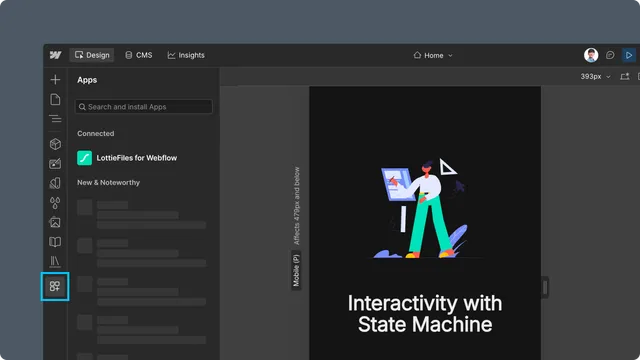
Webflow documents the current installation flow in Webflow Apps overview.
Connect a LottieFiles account
Explore can provide a limited guest workflow. Sign in when you need to:
Browse private and team Workspace assets.
Save a prepared animation to Workspace.
Access plan-dependent features or continue after the guest insertion limit.
Complete LottieFiles authentication in the browser, return to the same Webflow site, and relaunch the app if the account state does not refresh.
Troubleshooting
The app is installed in the wrong site - return to Marketplace or Apps management and add it to the intended site.
Launch app is unavailable - confirm the current role can use Apps and that authorization completed.
Sign-in finishes but Workspace stays unavailable - return to the original Webflow tab and reopen LottieFiles.