Motion System basics
Learn what systems, sections, and items are, and how drafts and publishing work across the Motion System workflow.
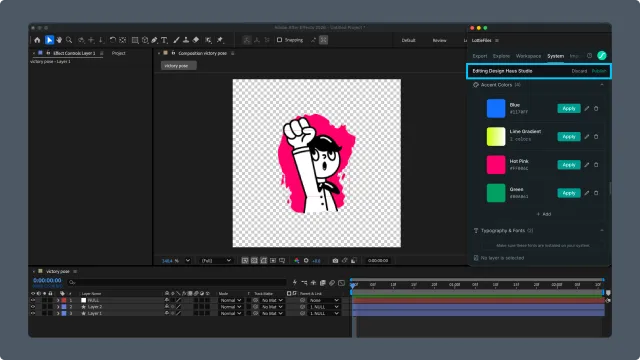
A motion system is a collection of items
A motion system is a named container of design elements specific to motion design. Think of it as a Figma library, but for time-based properties.
A motion system contains sections. Each section is a typed group of items.
Section types
The plugin supports five section types:
| Section type | Stores | Example items |
| Colors | Named brand or motion-specific colors | brand-primary, accent-warning, bg-surface |
| Easings | Named easing curves | ease-in-out-soft, bounce-strong, spring-quick |
| Fonts | Font references | display-bold, body-regular |
| Motion Presets | Pre-authored motion patterns | fade-in-up, scale-pulse, slide-from-right |
| Assets | Asset references (icon sets, illustrations) | success-icons, loading-states |
Draft and Published
Editing happens in a draft version. While a draft is open, the panel header shows Editing {system name} with Discard and Publish actions. Publishing makes the draft the live version; discarding throws the draft away. A system with no content cannot be published.
How Motion System fits into your workflow
The typical flow:
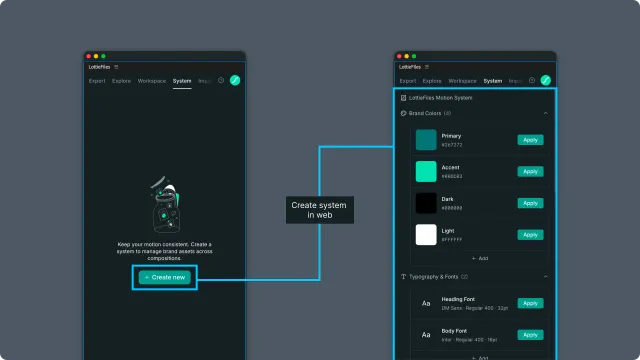
Create the system — choose Create new to open the Motion System web dashboard. Create the Motion System and manage the system itself there.
Add or edit items — open an existing system in the AE plugin to add or update supported colors, easings, fonts, and collection assets. Use Lottie Creator when a motion preset needs more detailed editing.
Publish and apply — publish the draft, select layers or properties in an AE composition, and apply the system items you need.
Related
Editing sections — fill in items.
Render — themes/items require dotLottie format.