Inserting Workspace animations
Preview an approved Workspace file and insert it as a Framer player component.
Workspace insertion uses the same Framer component workflow as Explore, but starts from a private or team-managed file.
Insert the selected file
Select the destination Frame on the Framer canvas when the animation should be nested inside it.
Open Workspace and navigate to the approved file.
Play the preview and confirm the current animation, palette, theme, and state-machine mode.
Select Insert animation.
Inspect the selected component on the canvas.
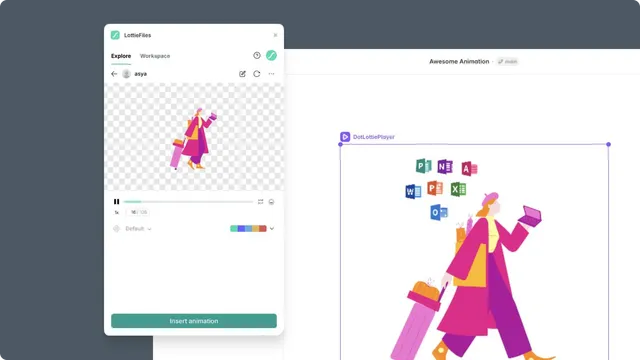
The plugin inserts the component inside a selected Frame when possible and centers it within that container. Without a suitable selection, it adds the component at the canvas root.
Customized files
If you recolor the animation, the primary action changes to Save animation to insert. Save the prepared result to the correct Workspace location, then continue with the saved production source. See Recoloring an animation for the complete workflow.
After insertion
Resize and position the component in Framer. Then open Preview and confirm its layout, playback, and interactions at every breakpoint used by the page.
The component does not automatically follow later Workspace versions. See Updating a published animation.