Recoloring an animation
Apply a preset or custom color palette before adding a Lottie animation to Canva.
Recolor an animation when its motion is right but its palette does not match the Canva design.
Open color controls
You can enter recoloring from supported Explore results or from an individual animation preview. If color controls do not appear, the animation may not contain editable vector colors or may use an unsupported feature.
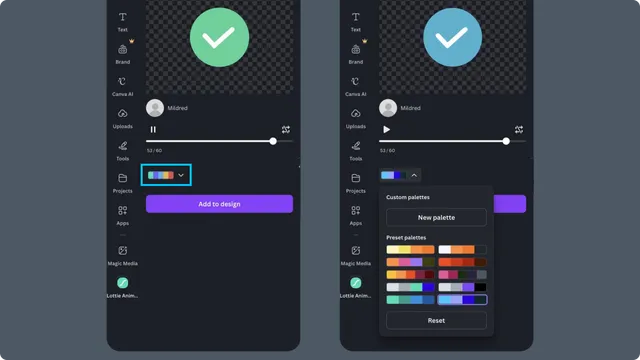
Apply a preset palette
Choose a palette to replace the animation's detected colors together. Preview the entire animation after applying it, because a color can be used in more than one layer or state.
Create a custom palette
Open the custom palette option.
Choose up to five colors.
Apply the palette.
Play and scrub through the result.
Use Reset to return to the original colors before trying another palette.
Add or continue editing
Click Add to design to insert the recolored result. For layer-specific colors, timing, gradients, or more detailed changes, choose Open in Creator and continue in Lottie Creator.
Limitations
Recoloring replaces detected editable colors; it does not recolor raster images.
Some gradients and complex animation features may not map cleanly to a palette.
State-machine and other advanced dotLottie controls are not exposed in the Canva recolor workflow.