Editing in Lottie Creator
Open a Canva animation in Lottie Creator for advanced editing, then return through Workspace.
The Canva app is optimized for finding, previewing, recoloring, and inserting. Use Lottie Creator when the animation needs structural changes.
When to use Creator
Open the animation in Creator when you need to change:
Layers or artwork.
Keyframe timing or easing.
Motion paths or transforms.
Segments, themes, motion tokens, or state machines.
The structure of a multi-animation dotLottie file.
Open the animation
Choose Open in Creator from a supported Explore, Workspace, imported, recolored, SVG, or multi-animation preview. Lottie Creator opens in a browser.
The handoff depends on the source:
An existing Workspace or Creator file can open in its connected project context.
A public or imported source can open as a new draft or editable copy.
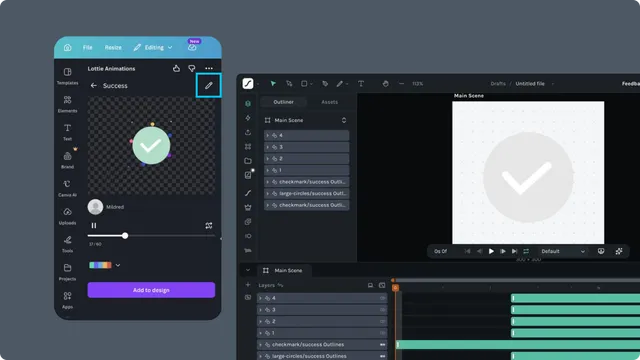
Confirm the destination shown in Creator before saving so you do not overwrite an unintended team asset.
Save and return to Canva
Complete the advanced edit in Creator.
Save or update the animation in the intended LottieFiles workspace.
Return to Canva.
Open Workspace in the LottieFiles app.
Reopen or refresh the saved asset.
Preview it before adding it to the design.
Creator runs in the browser and keeps its own autosave and version workflow. See the Lottie Creator documentation for editor-specific instructions.