Installation
Open the LottieFiles app from the Canva editor and connect a LottieFiles account.
Open LottieFiles from the Apps area of a Canva design. Canva keeps the app available in your recent apps after you use it.
Open LottieFiles in Canva
Open or create a Canva design.
Click Apps in the side panel.
Search for LottieFiles.
Select the LottieFiles app to open it beside the Canva canvas.
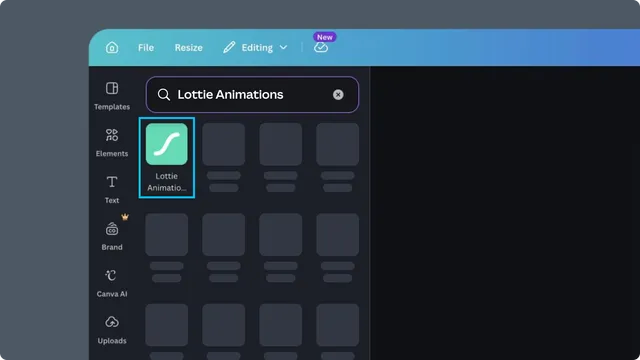
Canva also provides an overview of the workflow on its Lottie animation page.
Connect your LottieFiles account
Some Explore browsing can be available before sign-in. Connect your account when you need to:
Browse private or team Workspace assets.
Import an owned animation.
Use plan-dependent Premium content.
Open an animation in Lottie Creator.
Complete authentication in the browser window, then return to the Canva editor. Reopen the LottieFiles app if it does not refresh automatically.
Troubleshooting
LottieFiles does not appear in Apps - make sure you are editing a Canva design, then search the full Apps directory rather than Elements.
Sign-in completes but the app stays signed out - return to the same Canva tab and reopen LottieFiles.
The app opens without the expected tabs - refresh the Canva editor and check that third-party apps are allowed for the team.
A feature is unavailable on mobile - use Canva in a current desktop browser for the full workflow.