Using themes
Apply a dotLottie theme and map light and dark variants to Framer color modes.
Themes let one dotLottie file expose named visual variants without exporting separate animation files. Theme controls appear only when the selected file contains compatible theme data.
Preview a theme
Open an animation that contains themes.
Use the theme control to switch from Default to a named theme.
Play the animation and inspect the entire result, not only the first frame.
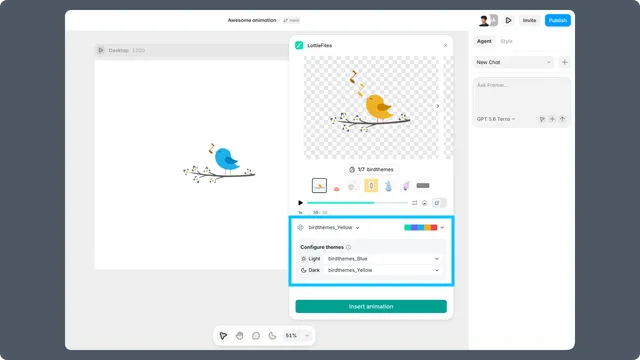
Configure Framer light and dark modes
Use Configure themes to map one file theme to Framer's light mode and another to dark mode. The inserted component stores those theme IDs and responds to the site's color mode.
Renderer requirement
Use ThorVG Player or Automatic for theme-aware dotLottie playback. SVG Player does not preserve the full theme behavior and can trigger a compatibility warning.
Test every published state
Preview the default, light, and dark variants in the plugin.
Test both Framer color modes before publishing.
Open the live site and switch the operating system or site color mode.
Confirm contrast and brand colors at every breakpoint.
If the file has no useful themes, edit or create them in Lottie Creator and save the result back to Workspace.