Finding animations
Search and evaluate public Lottie animations before inserting them into Framer.
Search by the job the animation must do, then evaluate it in the page context where it will be published.
Browse and search
Open Explore.
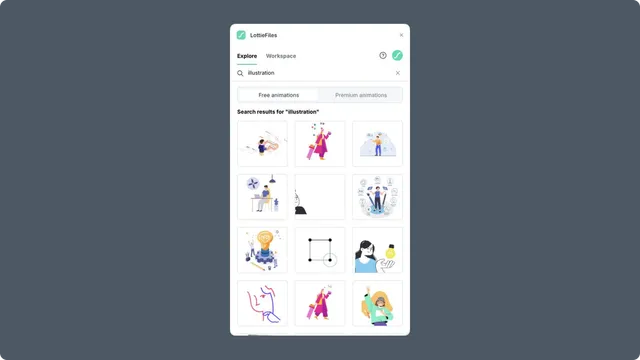
Choose Free animations or Premium animations.
Browse Featured, Popular, or Recent results, or enter a search term.
Select a result to open its preview.
Framer starts a search after a short pause once the query is long enough. Use focused phrases such as checkout success, empty state, uploading, or scroll indicator instead of broad visual terms alone.
Evaluate the preview
Check the complete loop rather than the thumbnail alone:
The motion communicates the intended state.
The duration and loop do not distract from page content.
Fine details remain legible at the intended component size.
The background and palette fit both light and dark page contexts.
The file does not rely on an advanced feature the destination does not need.
If the animation is close but not ready, recolor it or open it in Lottie Creator before inserting it.
Keep production sources intentional
A public animation can be inserted directly. When a team needs review, ownership, or version history, save the chosen result to the correct Workspace project first, then insert the Workspace copy.