Interface
Learn the Explore, Workspace, and Import areas of the LottieFiles app for Canva.
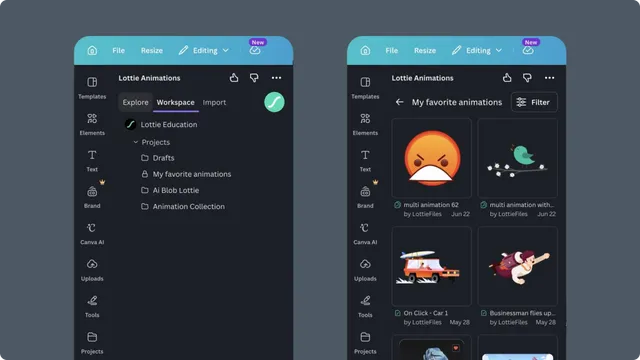
The LottieFiles app has three starting areas. Each one leads to a shared preview where you can inspect, customize, and add the result to Canva.
Main areas
Explore - search and browse the public LottieFiles animation library. See Explore.
Workspace - browse assets saved by you or your team. See Workspace assets.
Import - open a local Lottie file or direct URL, or upload an SVG to animate. See Importing an animation.
Preview
Selecting a supported animation opens its preview. From there you can:
Play, pause, loop, or scrub through the animation.
Switch between animations inside a multi-animation file.
Apply a preset or custom color palette when recoloring is supported.
Add the current result to the Canva design.
Open supported sources in Lottie Creator for advanced editing.
Account and workspace context
Use the account area to connect LottieFiles. Workspace and Import require an account connection. In Workspace, confirm the active workspace before choosing a project or asset, especially when you belong to more than one team.
Canva canvas
The app prepares the animation, but final placement happens on the Canva canvas. After insertion, use Canva to resize, position, layer, duplicate, or remove the element.